


Life360 not updating location, you’re not alone. This is one of the most common issues users experience on both iPhone and Android, and it can happen for several reasons — weak GPS, disabled permissions, battery saver mode, poor signal, an outdated app, or a device-specific restriction.
The good news? In most cases, you can fix Life360 location problems in just a few minutes once you understand what’s causing them.
This guide explains why Life360 location is not updating, how to troubleshoot it on iPhone, Android, and Huawei, what to do when Life360 isn’t updating for one person, and what settings can cause the app to pause updates—even unintentionally.
Let’s dive in.
What Causes Life360 Not to Update Location? (At a Glance)
Life360 updates location every few seconds, but only when the device can provide accurate GPS data and the app has the proper permissions. If any requirement breaks, the app stops updating.
The most common reasons Life360 stops updating location include:
- Location permissions turned off
- Background app activity disabled
- Low Power Mode (iPhone) or Battery Optimization (Android)
- No cellular data or Wi-Fi
- Poor GPS signal
- The user is on a phone call (some carriers interrupt GPS/data)
- The app is paused, logged out, or forced-closed
- Outdated Life360 app version
- Device-specific restrictions (common on Huawei and some Android phones)
If you’re wondering “Why is Life360 not updating location for one person?”, many times that person has one of these issues active on their phone.
1. Life360 Not Updating Location for One Person — Why It Happens
When Life360 is not updating one person’s location, it usually means the problem is happening on their device, not yours.
Here are the most likely causes:
1. They disabled location permission (even accidentally).
Life360 requires “Allow all the time” access.
2. Their phone is in Low Power Mode (iPhone) or Battery Saver Mode (Android).
Battery saving features block real-time GPS updates.
3. The app was swiped away or closed in the background.
Some devices treat this as “force-stopping” the app.
4. They have an unstable connection.
If their phone has no data, the location can’t update — Life360 cannot work offline.
5. Their phone is off, dead, or has no signal.
In this case, Life360 will show the last known location only.
6. Huawei devices (and some Xiaomi models) aggressively kill background apps.
If they use a Huawei device, this is almost always the cause.
How to Fix Life360 Not Updating Location (Universal Steps)
Whether the issue is on your phone or someone else’s, the fixes below solve 90%+ of Life360 location problems.
Fix #1: Enable “Allow All the Time” Location Access
To solve the issue “Life360 not updating location”, you needs continuous access to GPS.
On iPhone:
- Go to Settings
- Tap Life360
- Select Location
- Choose Always
- Turn on Precise Location
On Android:
- Go to Settings
- Tap Apps → Life360
- Tap Permissions
- Select Location
- Choose Allow all the time
Without this, Life360 will not update correctly.
Fix #2: Turn Off Battery Optimization
Battery-saving modes pause location updates.
On iPhone:
- Turn off Low Power Mode Settings → Battery → Low Power Mode OFF
On Android:
- Turn off Battery Optimization for Life360 Settings → Apps → Life360 → Battery → Don’t optimize
On Samsung:
- Remove Life360 from Deep Sleep Apps Settings → Device Care → Battery → Background usage limits
On Huawei:
- Disable App Launch Control
- Disable PowerGenie
Huawei is notorious for blocking background apps—this alone can fix Life360 not updating location on Huawei devices.
Fix #3: Turn On Background App Refresh / Background Activity
Life360 requires permission to run even when the screen is off.
iPhone:
Settings → General → Background App Refresh → ON
Android:
Settings → Apps → Life360 → Mobile Data → Allow background data usage
Fix #4: Check Data Connection
Life360 needs both GPS and internet.
Ask the affected person to check:
- If Mobile Data is ON
- If Airplane Mode is OFF
- If they are in a low-signal area
- If their SIM card has an active data plan
Life360 cannot update location on Wi-Fi alone when you’re outside.
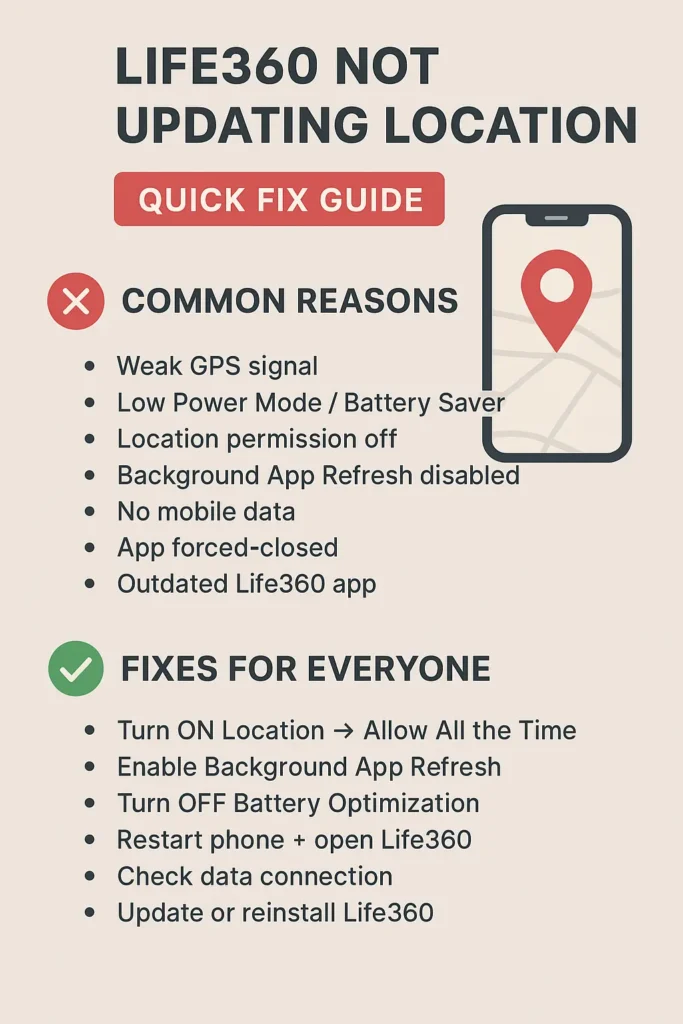
Fix #5: Update or Reinstall the Life360 App
Outdated apps often cause tracking problems.
- Update via App Store / Google Play
- If that doesn’t work, uninstall and reinstall
- Log back in with the same account
Reinstalling refreshes permissions and resets the GPS service.
Fix #6: Make Sure the Device Clock Is Correct
If the phone time is set manually or incorrectly, Life360 may malfunction.
Set Automatic date & time to ON.
Fix #7: Ask the Person to Open the App
Although Life360 usually runs automatically, some phones only allow location updates when the app is active.
Opening Life360 forces a fresh location update.
2. Life360 Not Updating Location on iPhone — Apple-Specific Causes
If Life360 is not updating location on iPhone, it usually comes down to:
1. Low Power Mode
This immediately restricts background GPS.
2. Background App Refresh disabled
Life360 stops updating when the screen turns off.
3. Precise Location disabled
The app can’t lock onto the user’s real position.
4. iOS Offload App feature
If enabled, iOS may offload Life360 to save storage.
5. iPhone being on a call (less common)
Some carriers interrupt data during calls.
Quick fixes for iPhone users:
- Enable Location → Always
- Turn on Background App Refresh
- Turn off Low Power Mode
- Ensure Cellular Data is on
- Update iOS and Life360
3. Life360 Not Updating Location on Android — Common Causes
Android devices vary by brand, but most problems come from aggressive battery management.
Most common Android-specific issues:
- Battery Optimization ON
- Data Saver ON
- App killed from background
- Adaptive Battery restrictions
- GPS set to “Device Only”
- Limited background activity
Quick fixes for Android users:
- Allow Life360 unrestricted battery usage
- Turn on background data
- Allow all permissions
- Turn off Data Saver
- Set GPS to High Accuracy mode
4. Life360 Not Updating Location on Huawei (Super Common Issue)
If you see complaints like “Life360 not updating location on Huawei Mate SE”, this is because Huawei heavily restricts background apps.
To fix:
- Go to Settings → Battery
- Turn off App Launch Control
- Allow Life360 to run automatically
- Disable “PowerGenie” if visible
- Allow background activity manually
Huawei users have the highest rate of Life360 location issues, so these steps are essential.
5. Life360 Location Sharing On But Not Updating
You may see the message:
“Location sharing on, but not updating.”
This usually means:
- Weak or no GPS
- No internet connection
- Device is in power-saving mode
- Background activity blocked
- App was recently force-closed
Fix by:
- Re-enabling GPS
- Turning off battery saver
- Ensuring mobile data is active
- Restarting the device
6. Can Life360 Stop Updating on Purpose? (Understanding This Safely)
People often search “how to make Life360 not update location” or “how to stop Life360 from updating without anyone knowing.”
For privacy and safety reasons, we will not provide instructions on disabling tracking undetected.
However, here are legitimate settings that naturally pause updates:
- Low Power Mode
- Battery Saver Mode
- Airplane Mode
- No signal
- Location permission turned off
- Phone powered off
- App not allowed to run in background
If someone’s location stops updating unexpectedly, one or more of these settings may be active.
7. Life360 Not Updating Location on Home Assistant
If you’re using Life360 with Home Assistant, outdated tokens or API changes can cause mismatches.
Fix by:
- Re-authenticating Life360 in Home Assistant
- Ensuring the integration uses the newest API
- Checking device_tracker settings
8. When to Contact Life360 Support
You should reach out to support if:
- The app has not updated for multiple users
- Updates fail even with full permissions
- Maps show incorrect or random locations
- Crashes happen often
Sometimes an account-level issue requires manual review.
Frequently Asked Questions (FAQs)
1. Why is Life360 not updating location?
Common causes include weak GPS, disabled permissions, no data connection, battery saver restrictions, or an outdated app.
2. Why is Life360 not updating location for one person?
The issue is almost always on their device—background app refresh, battery saver mode, or location permissions.
3. Why is my friend’s Life360 location not updating?
Your friend’s phone may have no signal, poor GPS, disabled permissions, or battery optimizations turned on.
4. How do I fix Life360 not updating my location?
Enable “Allow all the time” location access, disable battery saver mode, turn on background data, and restart the app.
5. Why is Life360 not updating location on iPhone?
Low Power Mode, Background App Refresh being off, or “Precise Location” disabled are the most common reasons.
6. Why is Life360 not updating location on Android?
Battery Optimization and Data Saver are the two biggest culprits on Android phones.
7. Does Life360 stop updating when your phone is off?
Yes. Life360 shows the last known location until the device turns back on.
8. Why does Life360 show location sharing on but not updating?
The phone might have no data connection, poor GPS, or battery saver mode enabled.














Leave a comment